How to install the DidUp app on smartphone or tablet
Step-by-step operations
The DidUp Family app is available in stores for both Android and iPhone, you can install it from these links:
To make the first access to the application, you will have to use the temporary credentials provided by the secretariat via e-mail or on paper.
Please note that credentials for "parent" accounts are issued by the secretariat while "student" ones are issued by the class coordinator only for students of lower secondary schools.
- Open the app and click on the button

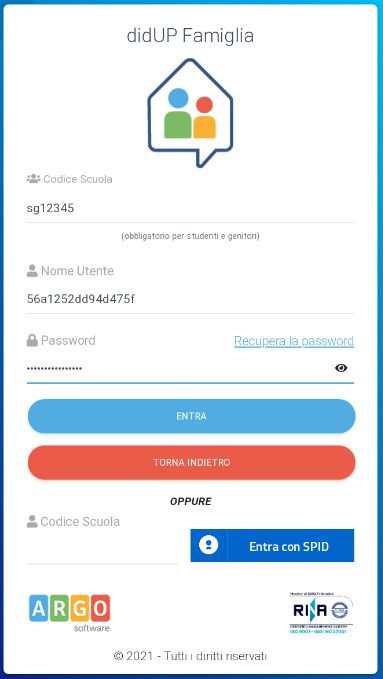
- Enter the school code (sc12072) and below the temporary credentials (numbers and letters) as per instructions received from the school; click on ENTER.
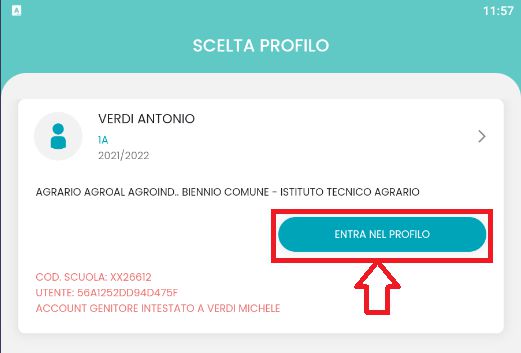
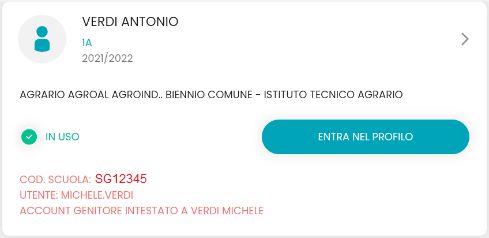
- One or more profiles are automatically generated based on the type of access:
- parent: a profile is generated for each child attending the school indicated in the login, in this case the child's name appears at the top and the parent's name is indicated at the bottom.
- student: only the specific profile of the student is generated, and at the bottom it is specified that it is a "student" account.
- Click on Enter Profile (if there are multiple profiles, repeat the operations, indicated below, on each profile)
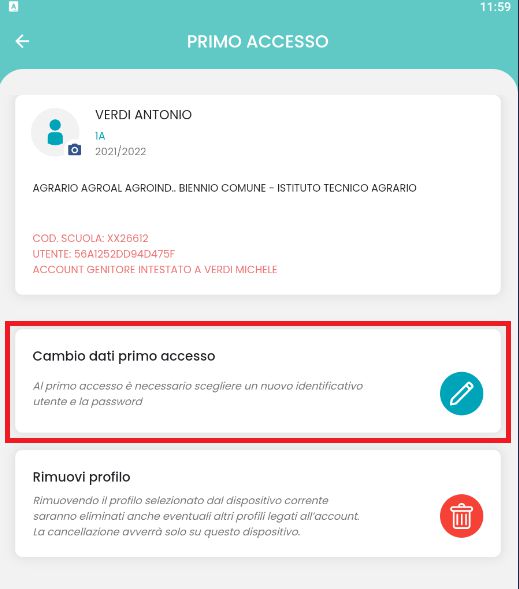
- Click on change first access data; button

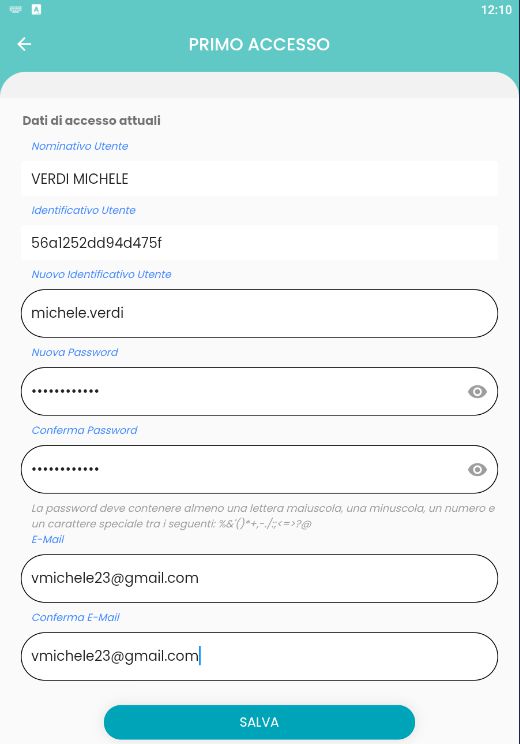
- Enter personal first access credentials, then click on SAVE. ==NOTE==: you can enter a username of your choice, without spaces and without the school code. E.g.: michele.verdi (OK); michele verdi (NO); michele.verdi.sg12345 (NO).
- At this point the profile has been created correctly and you will be able to access all the features of the APP; you will receive a confirmation e-mail (6).
Quick Guides